
Favourites: Shortlist Biodatas and Slice Them Any Way the Conversation Needs
There's a small, specific failure that happens in every active marriage search. It's not losing a biodata. It's losing the memory of one.
You saw a biodata two weeks ago. It was good — the right background, a family that felt like a fit. You thought, clearly, "this one." And now your mother asks about it at dinner and all you have is a shape: an engineer, maybe from Pune, someone an aunty sent. The details are gone. The one that mattered most has dissolved into the forty that came after it.
Receiving biodatas is the easy part. Holding on to the few worth a real conversation is the hard part — and it's the part most families do with nothing but memory.
The Favourites tab is built for exactly that gap. Not for storing biodatas (your Received list already does that), and not for the inbox flood — for the decision. The handful you've deliberately set aside, kept sharp, and can pull up the instant a conversation needs them.
One tap to keep a biodata
Every biodata someone shares with you through ShareLync lands in your Received list. Next to each one is a star. Tap it — it turns gold — and that biodata is now in Favourites. Tap it again to drop it.
That's the whole interaction, and the speed is the point. You star a biodata the moment it feels promising, while the reasons are still fresh, instead of promising yourself you'll "organize later." Later never comes. One tap does.
Your shortlist, in one place
Open the Favourites tab and you see only your starred biodatas — lifted out of everything else. Two ways to look at them, with a toggle you set once:
- Grid is photo-forward — tall cards, photo up front, name and a one-line summary below. The view for scanning faces when the family's deciding together.
- List is denser and detail-first — compact rows for working through the shortlist methodically.
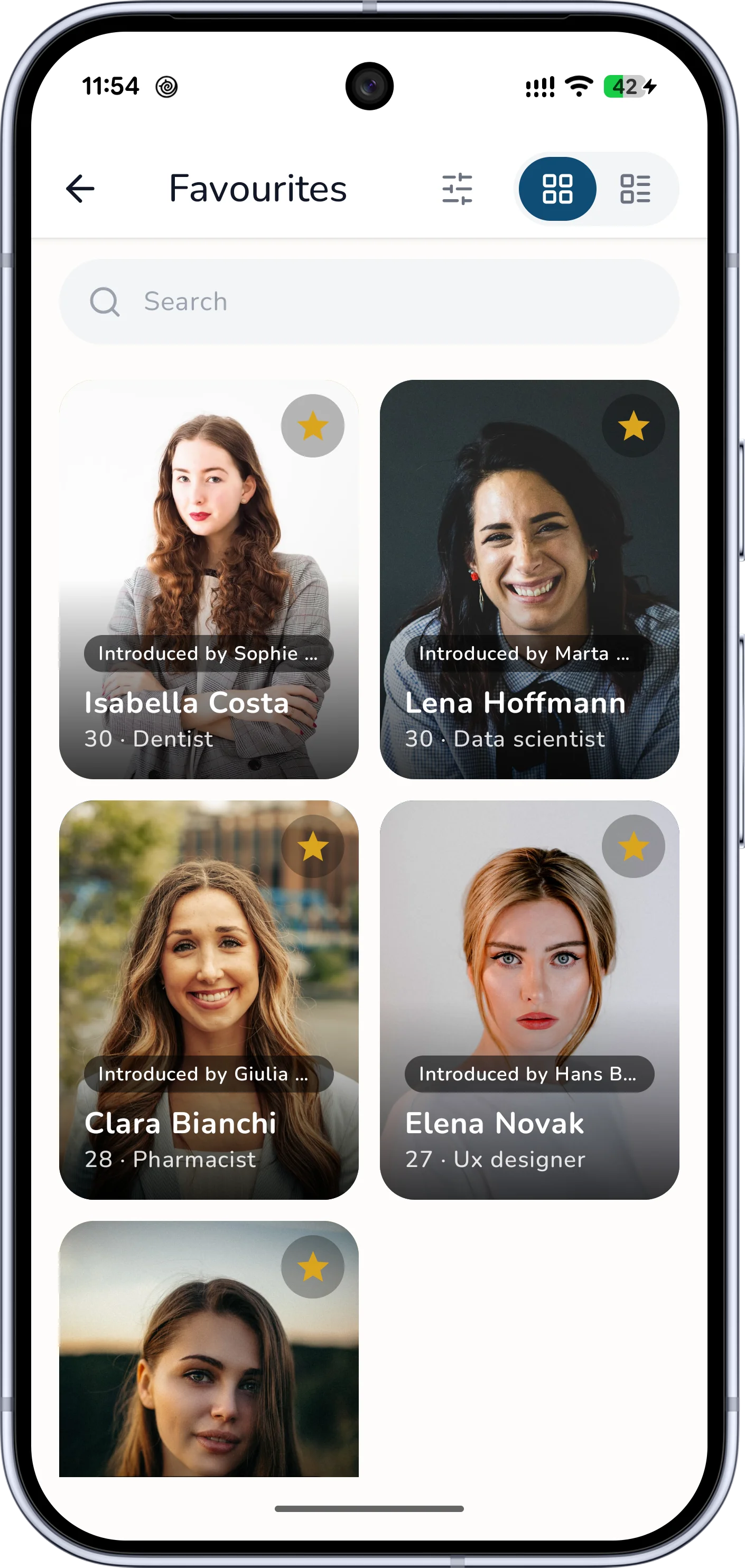
A biodata with no photo still looks deliberate: a clean monogram in the biodata's own theme colour, never a broken image.
The real power: slice your shortlist to fit the conversation
A list of five you can manage by eye. But a serious search — or one person helping several families — builds a shortlist of twenty, thirty, more. A flat list of thirty is just a smaller pile. Filters are what turn it into an answer.
Here's what that looks like in practice.
A family has starred 32 biodatas over two months. Tonight's conversation is narrow: their daughter is firm about Pune or Mumbai, never-married, and a working professional in her late twenties.
They tap the filter icon. City → Pune, Mumbai. Marital status → Never married. Age → 26–30. The shortlist of 32 collapses to 4. Those four are the entire conversation — no scrolling, no "wait, which one was that," no biodata getting lost between two others.
Tomorrow a different relative wants to see only what came through Sharma aunty. One filter — Introduced by → Sharma — and there it is. Same 32 biodatas, sliced a completely different way.
You can filter your shortlist by every dimension that actually decides a match:
| Age range | a slider — focus on a band like 26–31 |
| City | one place, or several at once |
| Marital status | never married, divorced, widowed |
| Community & religion | narrow to what the family is looking for |
| Education | filter to a qualification level |
| Diet | vegetarian, non-vegetarian, and the rest |
| Introduced by | who personally vouched for this biodata |
Three things make these filters feel like a person, not a form:
- They only appear when they're useful. If every biodata you've saved is from one city, the City filter stays hidden — nothing to narrow. As your shortlist gets more varied, more filters quietly show up. You never stare at empty controls.
- They combine the way you'd say it out loud. Pick two cities and you see either; add a marital status and you've narrowed within that. "Never-married professionals in Pune or Mumbai under 30" is three taps, not a search.
- Nothing is hidden from you. Every active filter is a chip you can see and clear with one tap. The list never gets shorter for a reason you can't find.
And when you just want a name, the search box at the top filters by name or profession as you type. "Pull up Anjali's biodata" becomes three letters, not a scroll.
You can also sort — most recently saved first, by age, or by name — so the order matches whatever you're deciding on.
"Introduced by" keeps the trust attached
The strongest biodatas rarely arrive cold. They come through someone — a relative, a family friend, an elder who knows the family and vouches for them. ShareLync keeps that attached: a biodata shared through an introduction carries a small "Introduced by [name]" tag on its Favourites card, and you can filter your whole shortlist by who introduced it.
In an arranged-marriage search, who vouched for a family is often as load-bearing as the biodata itself. Favourites remembers it for you instead of letting it scroll away with the original message.
Who this actually helps
- The parent running the search — Favourites is your working shortlist, cleanly separated from the dozens you're sent "just to consider." When a relative asks about "that family we discussed," it's one tab, not ten minutes of scrolling.
- The candidate — a private shortlist of biodatas you'd genuinely be open to, thought through on your own time before you bring any forward.
- The family helper carrying several searches — the filters are the whole point. One saved pool, sliced differently for each family: vegetarian and local for one, working-abroad for another.
Why not just star it on WhatsApp?
A fair question — WhatsApp already stars messages. But a starred message is frozen: it sits among starred recipes and payment screenshots, it can't be filtered by city or community, it won't tell you who introduced the family, and it can't show you "the four that fit tonight's conversation."
| Favourites | WhatsApp star | Notebook / spreadsheet | |
|---|---|---|---|
| Shows only biodatas | ✅ | ❌ mixed with everything | ✅ |
| One-tap to save | ✅ | ✅ | ❌ retype by hand |
| Filter by city, community, age… | ✅ | ❌ | ⚠️ manual, soon stale |
| Remembers who introduced it | ✅ | ❌ | ❌ |
| Stays current if the biodata is edited | ✅ | ❌ frozen snapshot | ❌ |
Favourites isn't a saved message. It's a living shortlist that understands what a biodata is — which is also why comparing the finalists stays painless once you've narrowed down.
Your shortlist is private
Starring a biodata is a private act. It doesn't notify the other family, it isn't shared with anyone, and your filters are yours alone. It's a quiet space for your own search — built entirely from biodatas that were deliberately shared with you in the first place.
Start your shortlist
If you're already receiving biodatas through ShareLync, you're three taps from a calmer search:
- Open a biodata in your Received list.
- Tap the star.
- Open the Favourites tab whenever the conversation needs it.
No setup, no spreadsheet, no new habit beyond a single tap in the moment a biodata feels right. Save the ones that matter, slice them to the conversation in front of you, and let the rest stay where they belong — in the background.
Get ShareLync and start your shortlist today.
Keep reading
- Organize & TrackHow to Compare Biodatas With Your Family Without It Turning Into a Fight11 min read
- Organize & TrackHow Matchmakers Organize 100+ Biodatas (And What Families Can Learn From Them)11 min read
- Organize & TrackHow to Keep Track of Biodatas You Receive on WhatsApp (Without Losing Your Mind)11 min read